

What is Claude Code?
The Claude Code plugin is Anthropic’s integration of Claude Code into the JetBrains ecosystem. Explore its documentation for details.WireMock MCP server
WireMock, via its CLI tool, provides its own MCP server implementation with which you can manage and work with your WireMock Cloud resources from any MCP-compatible AI tool. In order to be able to use the WireMock MCP server in Claude Code, the server configuration must be added to one of its configuration files. The IDE plugin helps simplify that process, and also makes it possible to use the MCP server with the WireMock Cloud account you are logged in with inside the IDE. It provides two ways of managing the MCP server configuration:- on-demand, one-click addition, update and removal via the plugin settings
- automatic update at certain points of the user workflow
On-demand configuration
On-demand actions are available at two distinct locations:- via a balloon notification after each project launch
- via the plugin settings at Settings | Tools | WireMock
Balloon notification
First of all, this notification is tied to the presence of the Claude Code IDE plugin. It is displayed only when the Claude plugin is installed. If that condition is satisfied, the notification appears after each project launch (that is to support the local and project scopes), but only once per project to minimize distraction.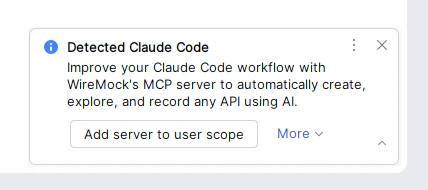
- Add server to user scope
- Add server to project scope
- Add server to local scope
- Don’t show again
claude mcp add ... CLI command with the proper configuration for the MCP server.
By choosing Don’t show again, the balloon will no longer be displayed for any projects in the future.
Plugin settings
MCP related options are available in the MCP Server Configuration section of the WireMock plugin settings.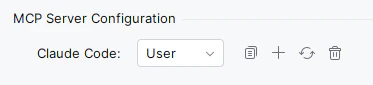
- Add WireMock MCP Server (
 ):
executes the
):
executes the claude mcp add ...CLI command in a new Terminal tab - Update WireMock MCP Server (
 ):
executes the
):
executes the claude mcp remove ...andclaude mcp add ...CLI commands in a new Terminal tab - Delete WireMock MCP Server (
 ):
executes the
):
executes the claude mcp remove ...CLI command in a new Terminal tab
- Upon clicking on these buttons, the CLI commands are not executed immediately. Instead, the last selection is saved, and the corresponding CLI command(s) will be executed after closing the Settings.
- If you change your mind, and don’t want the selected action to be executed, you can reset your selection using the settings page’s native Revert changes feature at the top.
 )
button.
In order to have the latest plugin settings values generated into the MCP server configuration,
and the latest credentials used, save the settings before using these actions.
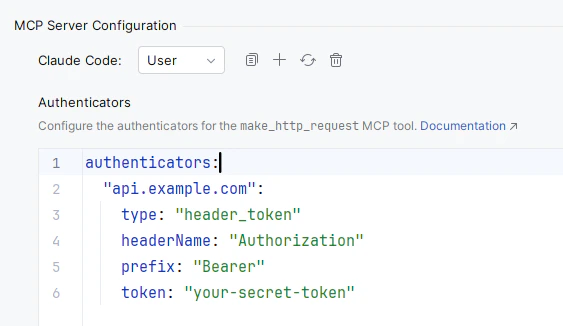
Authenticators for the make_http_request tool
Besides on-demand configuration options, the plugin settings also provides a way to configure the authenticators for the
)
button.
In order to have the latest plugin settings values generated into the MCP server configuration,
and the latest credentials used, save the settings before using these actions.
Authenticators for the make_http_request tool
Besides on-demand configuration options, the plugin settings also provides a way to configure the authenticators for the
make_http_request MCP tool in the same way they can be configured in WireMock CLI.
In order to use the latest authenticators value, save the settings, then use one of the on-demand actions, or log in to WireMock Cloud.
Automatic updates
In a few scenarios the WireMock MCP server configuration and credentials are updated automatically in all supported Claude Code config files, and the input configuration file. This is to make sure that the configuration stays up-to-date with the current plugin settings, login status, and the currently used IDE. The update happens in the background, and it is due to how the server configuration is built. See the MCP server structure section below for details. These scenarios are:- you log in to your WireMock Cloud account in the IDE
- you log out from your account
- you save the WireMock plugin settings
- the IDE is launched
The plugin detects if the server is registered to use WireMock CLI directly. In that case it doesn’t update
the server config to the plugin specific one.
MCP server configuration
The server config and the companion input config file built and managed by the WireMock plugin is different from the MCP server config used via WireMock CLI. This one uses the WireMock Cloud credentials and settings configured in the IDE, and not the data set in a local installation of WireMock CLI. This makes it better integrated with the IDE, and provides a smoother user experience when it comes to configuring the server. The server itself is registered and managed with the namewiremock, all lowercase letters, and is built as follows:
Input data
As for input data it reads a YAML configuration that is managed by the plugin inside the following directories:- Windows:
%LOCALAPPDATA%\wiremock-intellij(typicallyC:\Users\{username}\AppData\Local\wiremock-intellij) - macOs:
/Users/{username}/.config/wiremock-intellij - Linux:
~/.config/wiremock-intellij(typically/home/{username}/.config/wiremock-intellij)
Troubleshooting
Logging
The MCP server runner also maintains a log file for each execution of the MCP server. If you run into an issue, you can look into them for additional details:- Windows:
%LOCALAPPDATA%\wiremock-mcp-server\logs(typicallyC:\Users\{username}\AppData\Local\wiremock-mcp-server\logs) - macOs:
/Users/{username}/Library/Logs/wiremock-mcp-server - Linux:
~/.local/state/logs/wiremock-mcp-server(typically/home/{username}/.local/state/logs/wiremock-mcp-server)
Using the MCP server with a local CLI installation
Although the plugin’s own configuration mechanism provides a smoother user experience better integrated with the IDE and the plugin, you certainly can use the MCP server via a local installation of WireMock CLI. For that, please refer to the Installing WireMock Cloud AI documentation on the actual server configuration to register.Opting out from using the MCP server
If you no longer want to use the WireMock MCP server via the plugin,- you can either remove it via the WireMock plugin settings as mentioned in the Plugin settings section or directly in Claude Code,
- or you can opt to using it via WireMock CLI.