


Setting up the mock
To set up the SAML Identity Provider Mock in your WireMock Cloud account, follow these steps:- Log in to you WireMock Cloud account.
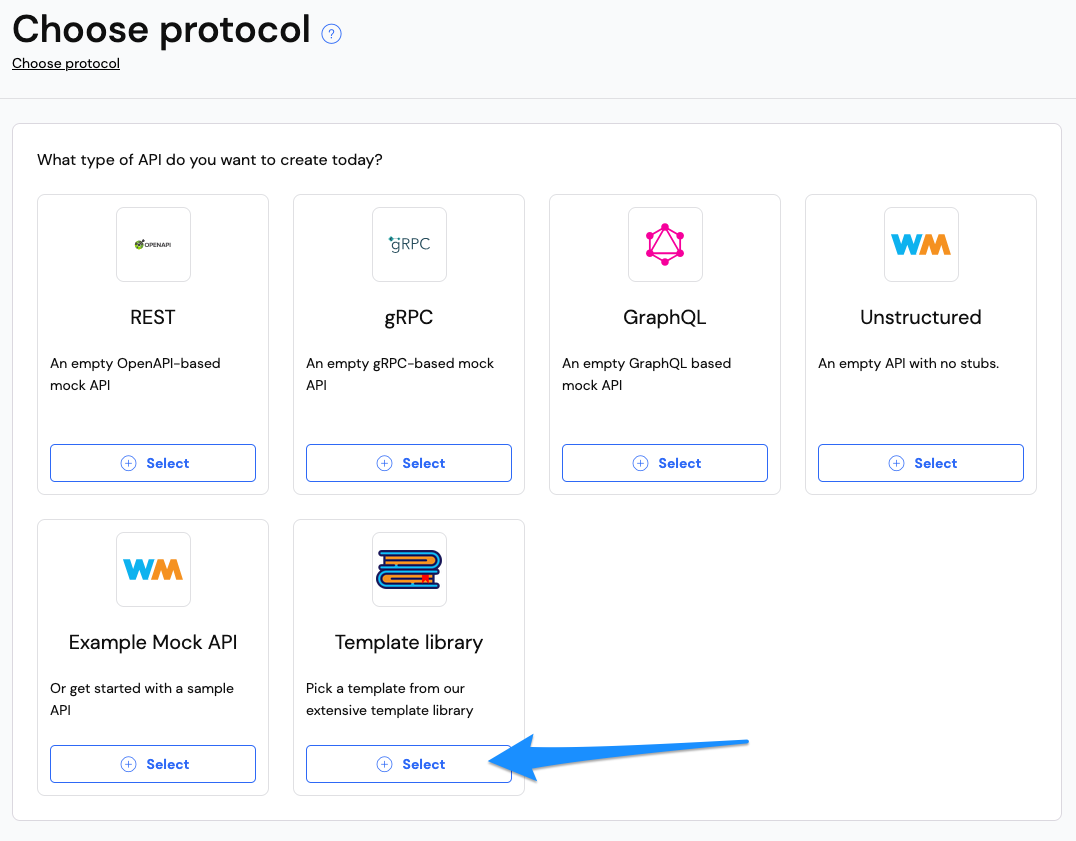
- Click Create new mock API.
- On the
Choose protocolscreen, chooseTemplate library.
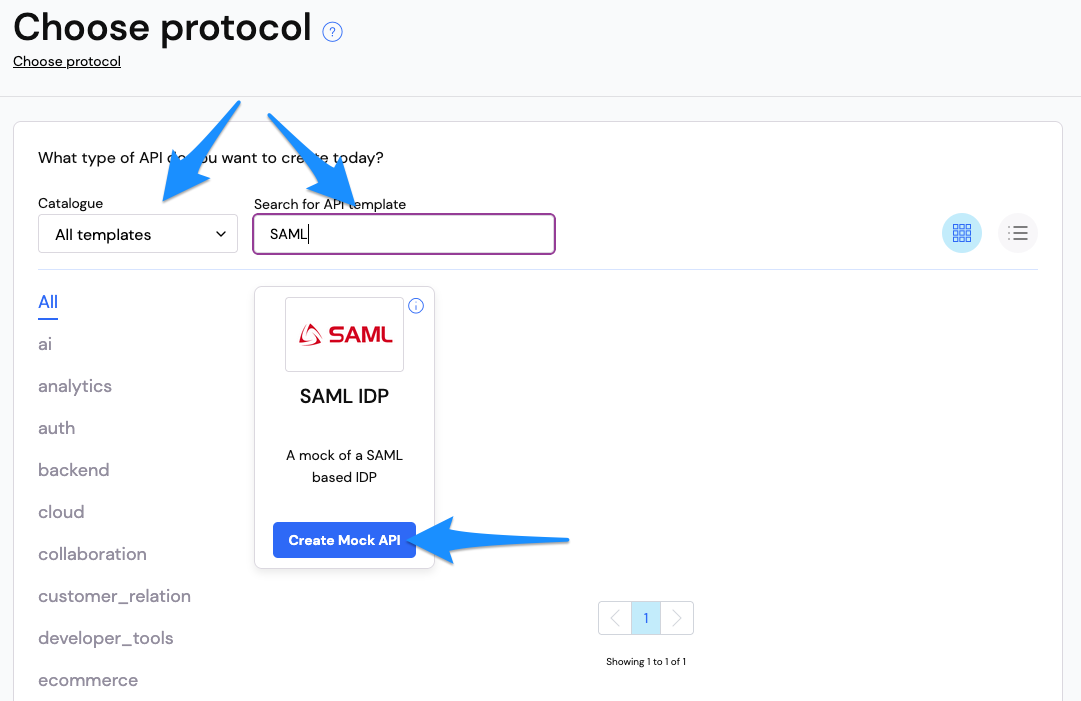
- On the template library screen, search for
SAMLand click Create Mock API on theSAML IDPtemplate.
- Give your mock API a name and click Continue.
- This will create the mock API from the template in your WireMock Cloud account.
How it works
The template provides an interactive web UI with a three-step flow:- Instructions (
/) — Setup guide for connecting the mock IdP to your Service Provider (e.g. Auth0) - Login (
/login) — A form to configure the post-back URL, email address, and optional extra SAML attributes - Send Response (
/send-response) — Builds a signed SAML response and POSTs it back to your SP’s ACS URL
/certificate.pem.
SAML response structure
The response includes:- Issuer — mock API’s base URL
- Subject — NameID using email (format:
emailAddress) - Conditions — NotBefore (now - 1 min), NotOnOrAfter (now + 5 min), with audience from the SAML request
- Attributes —
emailattribute plus any extra<saml:Attribute>tags from the login form - AuthnStatement —
PasswordProtectedTransportcontext class - Signature — SHA-256 digest, RSA-SHA256 signature, enveloped signature transform
Setup
To set up the SAML Identity Provider Mock as an Enterprise Connection, copy the base URL of the mock API and open it in your browser. You should see a page with instructions for setting up the connection.
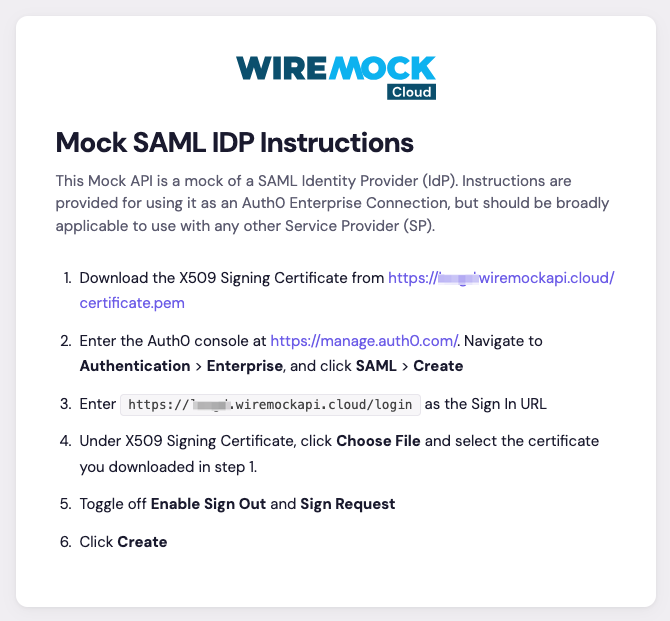
- Download the signing certificate from
/certificate.pem - In Auth0, navigate to Authentication > Enterprise, click SAML > Create
- Set Sign In URL to
<mock api base url>/login - Upload the certificate from step 1
- Toggle off Enable Sign Out and Sign Request
- Click Create
Login Experience tab you should specify your domain in the Identity Provider domains field
and remember to toggle on the applications you want to associate with this connection in the Applications tab.
Using with your app
- Login to your application using an account with an email address that matches the domain you specified in the connection setup.
- This should recognize the connection associated with the domain and redirect you to the
/loginpage of the mock IdP. - This will display the following form:
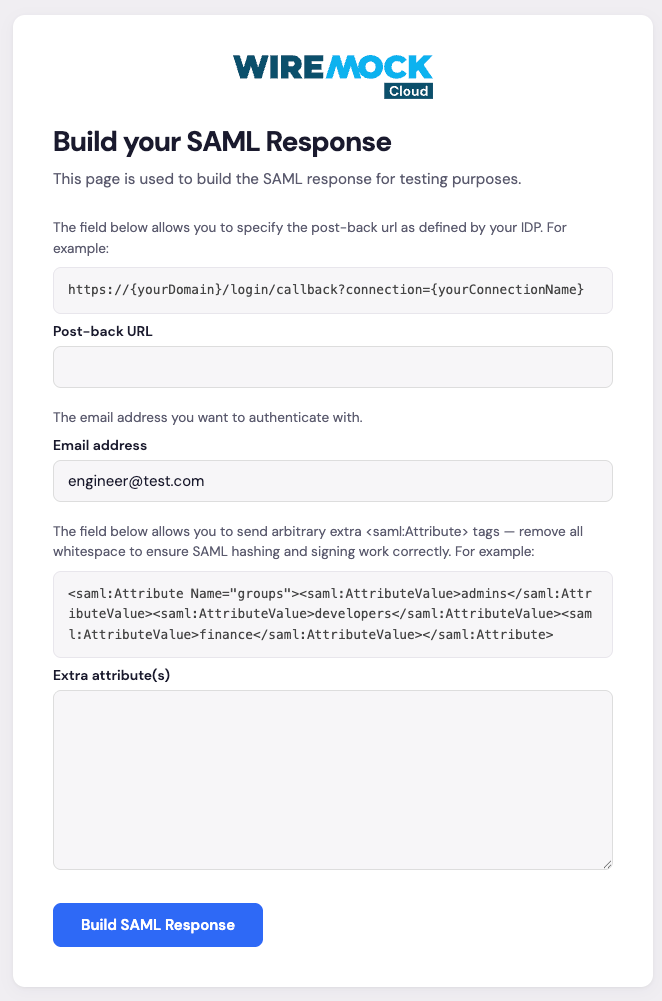
- Fill out the post-back URL as defined by your IDP. This is a required field. This is likely to be the same across all authentication requests for the same domain/connection. If this is the case you could update the response template to hardcode this value.
- Enter the email address of the user you want to authenticate. This is a required field.
- The
Extra attribute(s)allows you to send arbitrary extra<saml:Attribute>tags. It is important to remove all whitespace to ensure SAML hashing and signing work correctly. For example
Build SAML Response button. This will
take you to the /send-response page of the mock IdP, showing the SAML response that was built.
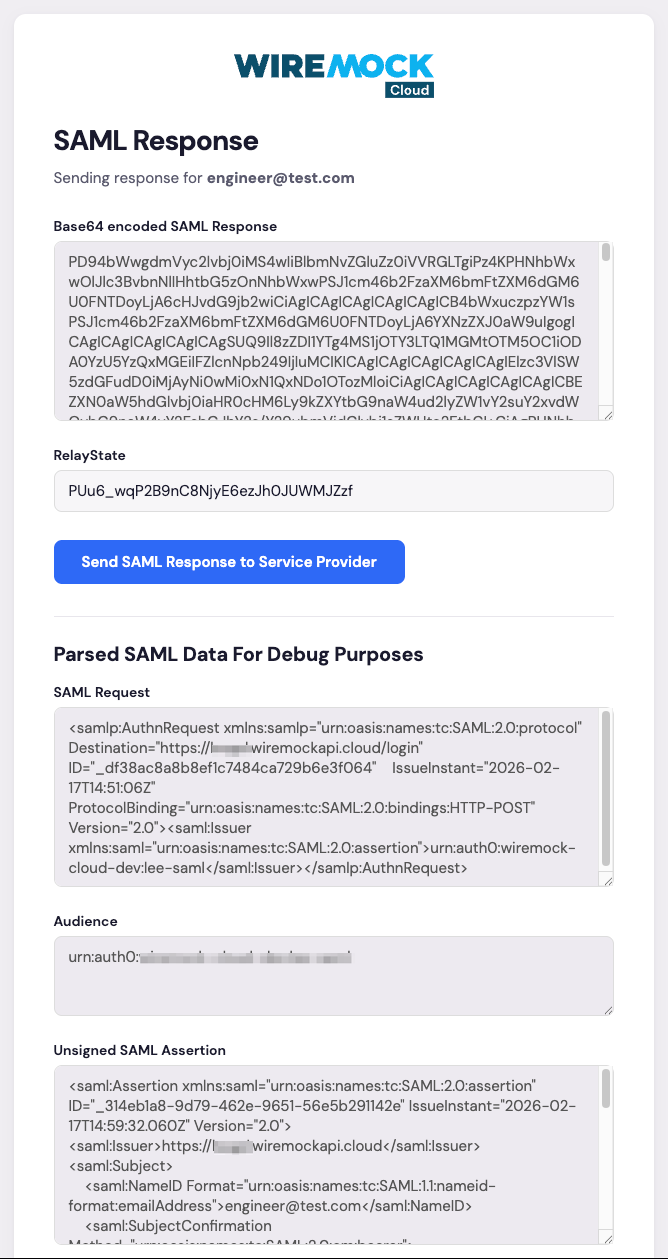
Send SAML Response to Service Provider button to send the response back to your SP.
You should then be authenticated and redirected back to your application.