> ## Documentation Index
> Fetch the complete documentation index at: https://docs.wiremock.io/llms.txt
> Use this file to discover all available pages before exploring further.
# Key management
> Securing your mock API integrations.
When using external integrations with WireMock Cloud, the communication between WireMock Cloud and these integrated services
must be secured.
WireMock Cloud provides the means to generate, moderate and attach asymmetric keys to facilitate this secure communication.
## Usage
For a key to be of use it must be attached to something that requires secure authentication with a third party.
Currently, the only place in WireMock Cloud where a key can be attached is a mock API's [OpenAPI Git integration](/openAPI/openapi-git-integration).
Instructions for attaching a key to an OpenAPI Git integration can be found [here](/openAPI/openapi-git-integration#configuring-your-git-integration).
## Managing your keys
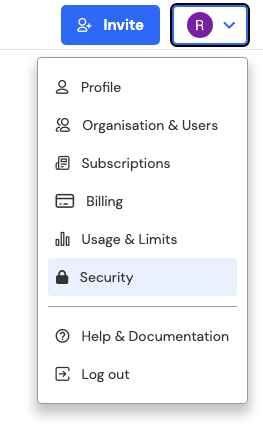
To view the keys you have access to, navigate to the security page in WireMock Cloud via your account avatar in the top
right and click on the `Keys` tab.
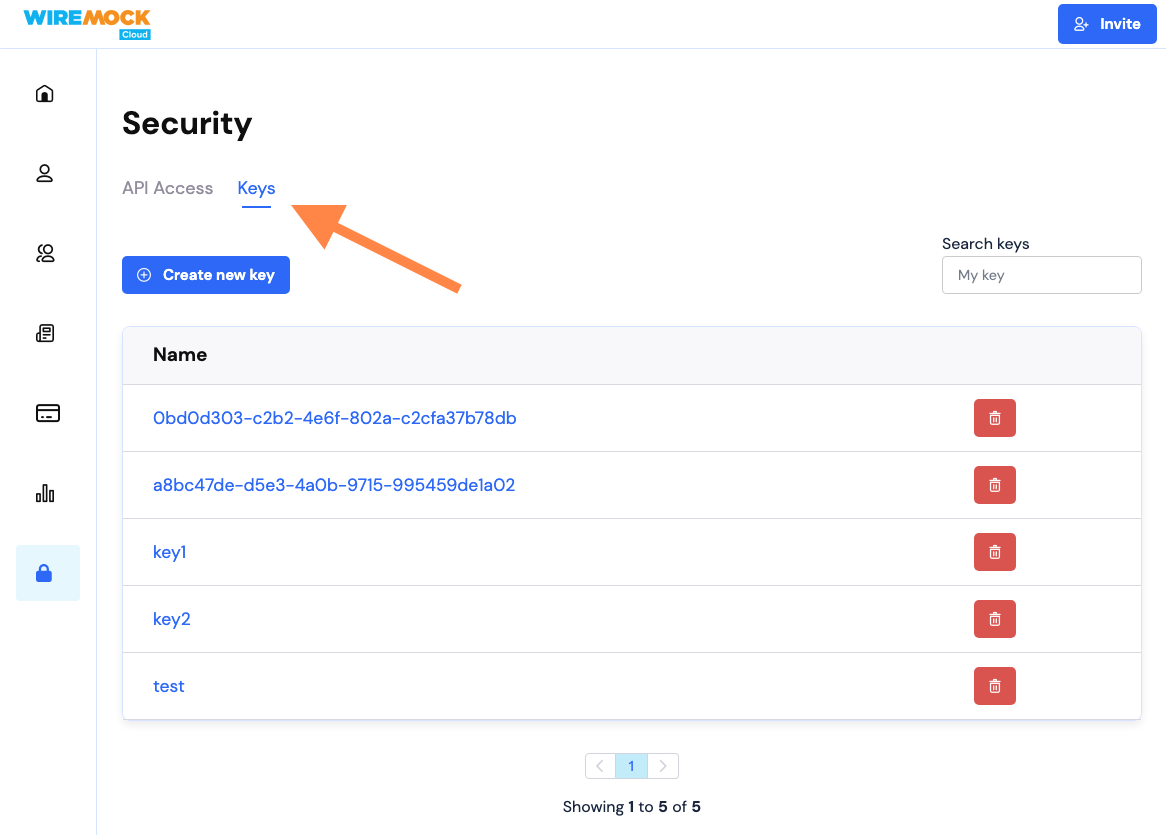 From this page you can create new keys, page between existing keys, and delete keys, as well as search for specific
keys by name.
### Creating new keys
Clicking the `Create new key` button on the main keys page will take you to a new page containing a form to enter the
desired name of the new key.
From this page you can create new keys, page between existing keys, and delete keys, as well as search for specific
keys by name.
### Creating new keys
Clicking the `Create new key` button on the main keys page will take you to a new page containing a form to enter the
desired name of the new key.
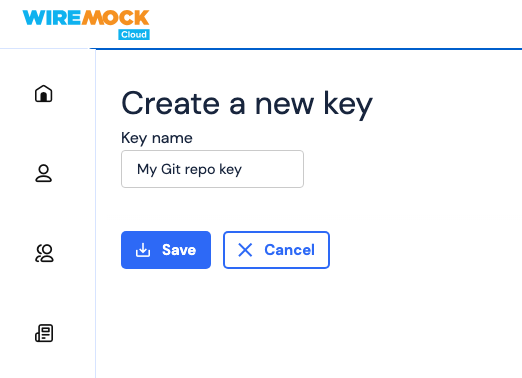 Saving this new key will generate a secure key pair, and the public key for this key pair will be displayed.
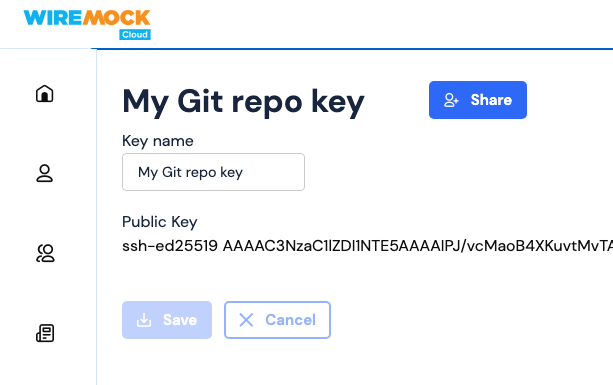 This key can then be [attached to other parts of WireMock Cloud](#usage).
The private key is stored in encrypted form and only decrypted briefly when in use via a secure decryption service.
### Moderating existing keys
To view and update a key, click on its name from the main key page.
This key can then be [attached to other parts of WireMock Cloud](#usage).
The private key is stored in encrypted form and only decrypted briefly when in use via a secure decryption service.
### Moderating existing keys
To view and update a key, click on its name from the main key page.
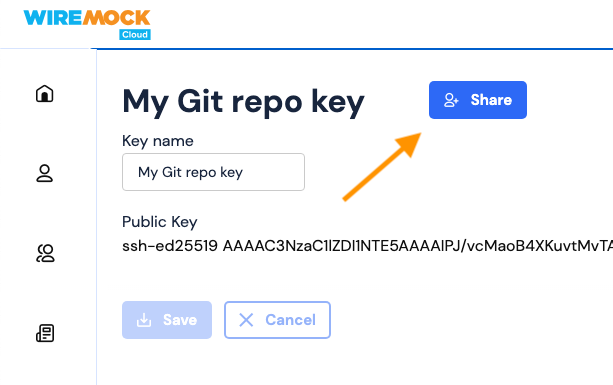
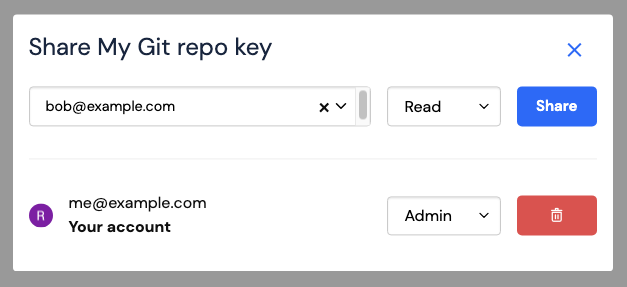
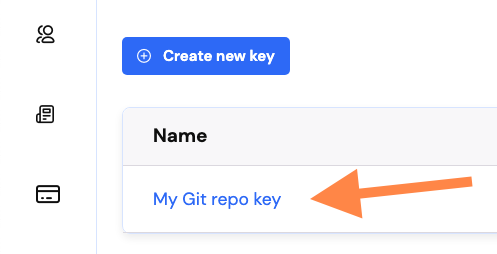 From here, a key's name can be updated, and the key can be shared with others in your organisation.