> ## Documentation Index
> Fetch the complete documentation index at: https://docs.wiremock.io/llms.txt
> Use this file to discover all available pages before exploring further.
# Creating & Editing Database Data Sources
> Setting up your external test data from a database
The database data source feature is currently in **private beta**. If you would like access to this feature contact us
via the `Get Support` link in the menu bar
## Creating a database data source
Data sources can be created at the organisation level, meaning that the Data sources you create can be shared among the
members of your organisation.
To create a database data source, you first need to create a [database connection](./managing-database-connections)
To create a data source:
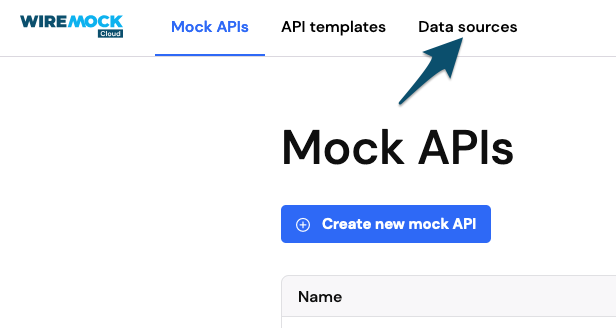
* Navigate to the Data Sources page.
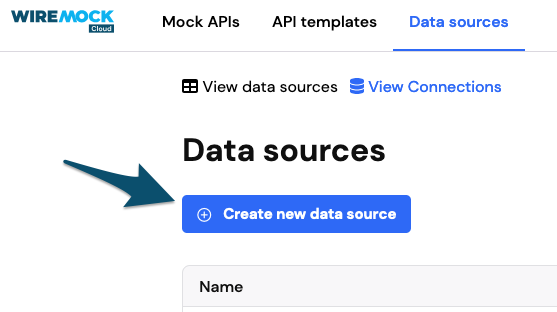
 * Click on the button, `+Create new data source`.
 * Choose `Database based` from the dropdown
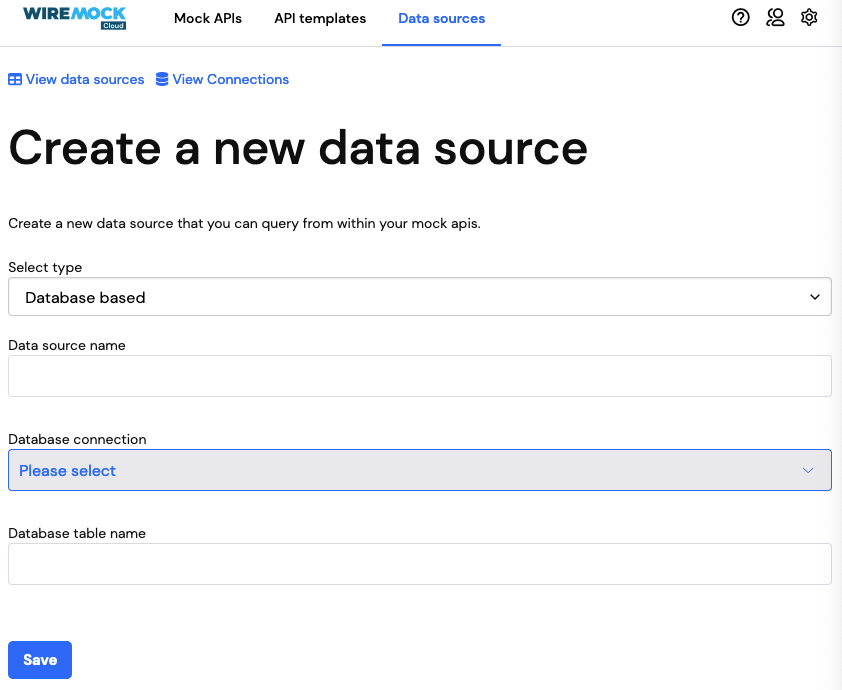 * Provide a name for your data source.
* Select the database connection you wish to use with this data source
* Enter the name of the table you wish to use with this data source. This can be the name of a table, or a view within
your database.
* Click `save` at the bottom of the page.
Once the data source has been saved you can view a preview (the first 10 rows) of the data returned from the specified
table by navigating to the data sources page and clicking on the data source you wish to preview.
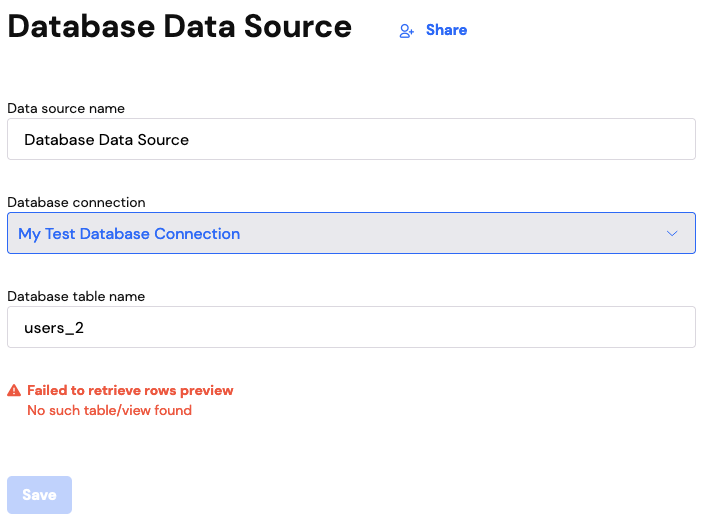
If the specified table could not be found, an error will be displayed.
* Provide a name for your data source.
* Select the database connection you wish to use with this data source
* Enter the name of the table you wish to use with this data source. This can be the name of a table, or a view within
your database.
* Click `save` at the bottom of the page.
Once the data source has been saved you can view a preview (the first 10 rows) of the data returned from the specified
table by navigating to the data sources page and clicking on the data source you wish to preview.
If the specified table could not be found, an error will be displayed.
 ## Editing a database data source
Data sources can be updated after creation.
To edit a data source:
* Navigate to the Data Sources page.
* Click on the data source you wish to edit, from the list provided.
* Update your data source.
* Click on the `save` at the bottom of the page.
Once in the data source page, you will be able to:
* Change the name of the data source
* Change the database connection used by the data source
* Change the table name referenced by the data source
## Editing a database data source
Data sources can be updated after creation.
To edit a data source:
* Navigate to the Data Sources page.
* Click on the data source you wish to edit, from the list provided.
* Update your data source.
* Click on the `save` at the bottom of the page.
Once in the data source page, you will be able to:
* Change the name of the data source
* Change the database connection used by the data source
* Change the table name referenced by the data source