> ## Documentation Index
> Fetch the complete documentation index at: https://docs.wiremock.io/llms.txt
> Use this file to discover all available pages before exploring further.
# Managing Database Connections
> Creating and editing the database connection to your test database
The database connection feature is currently in **private beta**. If you would like access to this feature contact us
via the `Get Support` link in the menu bar
## Creating a database connection
Database connections can be created at the organisation level, meaning that the database connections you create can
be shared among the members of your organisation.
To create a database connection, you must be an administrator of your organisation and your database must be
accessible - either publicly or via our AWS VPC. If you would like to explore the VPC option please contact us.
To create a database connection:
* Navigate to the Data Sources page.
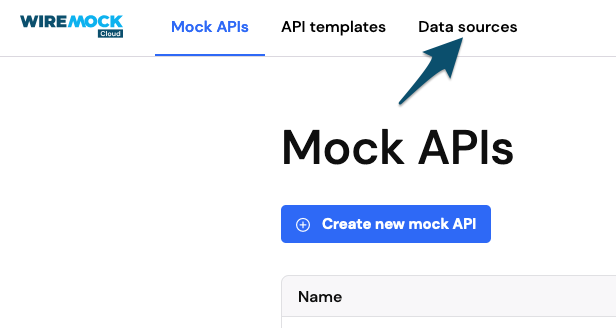 * Click on the link, `View Connections`
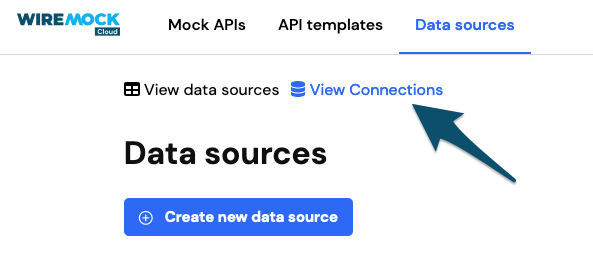 * Click on the button, `Create new database connection`
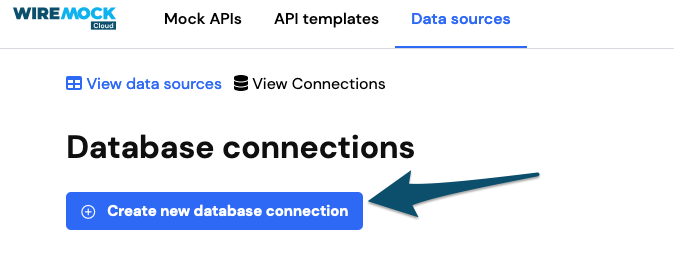 * Fill out the form with the details of your database connection
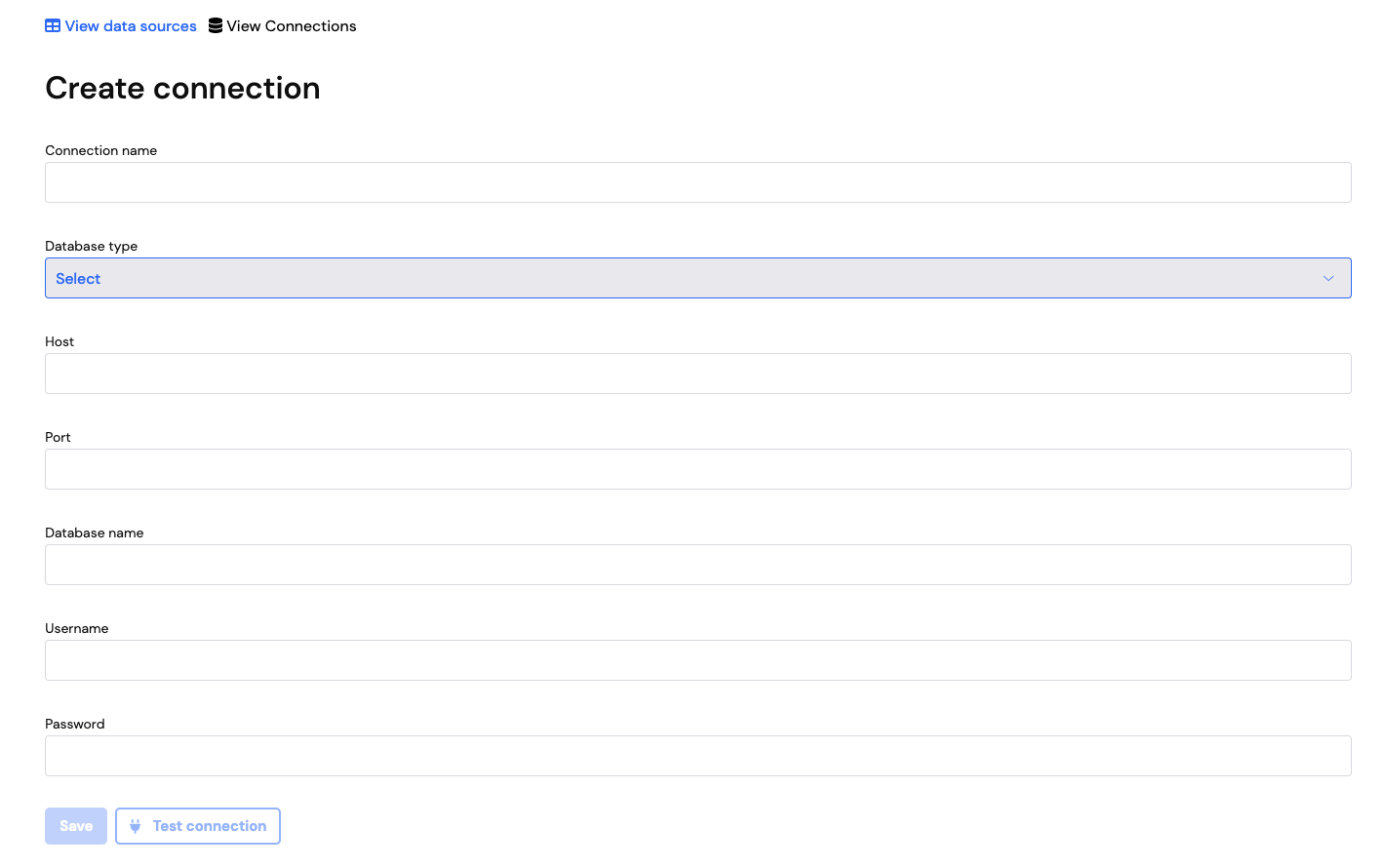 The connection details you will need are:
* A name for the connection. This must be unique across all the database connections in you organisation
* A database type - we currently support `Postgresql`, `MySql`, `Oracle` and `MS SQL Server`
* The hostname for the connection
* The port the database is running on
* The name of the database
* The username used to connect to the database
* The password used to connect to the database
Once you have entered all the details for your database connection you can test that they allow a successful connection
to your database by clicking on the `Test connection` button.
The connection details you will need are:
* A name for the connection. This must be unique across all the database connections in you organisation
* A database type - we currently support `Postgresql`, `MySql`, `Oracle` and `MS SQL Server`
* The hostname for the connection
* The port the database is running on
* The name of the database
* The username used to connect to the database
* The password used to connect to the database
Once you have entered all the details for your database connection you can test that they allow a successful connection
to your database by clicking on the `Test connection` button.
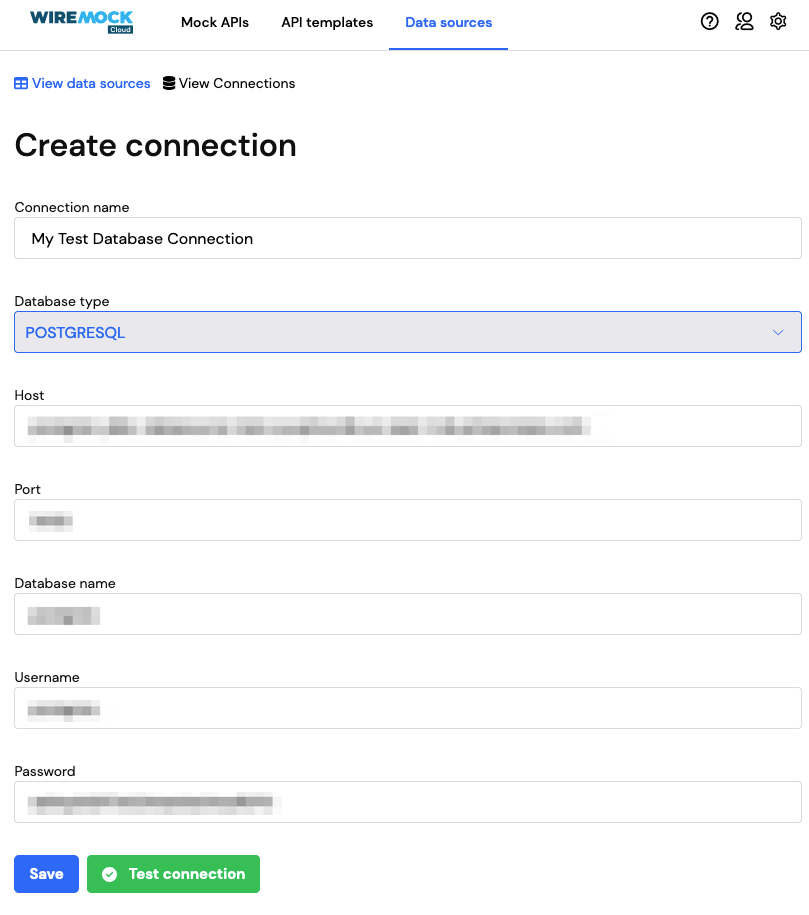 If the connection request is unsuccessful, an error message will be displayed.
 * Once you are happy with your database connection details, click on the `Save` button to save your connection details.
All database passwords you provide will be encrypted before they are stored to ensure maximum security to your data.
You are now ready to create your first [database connection data source](./managing-database-data-sources).
## Editing a database connection
Database connections can be updated after creation. To edit a database connection, you must be an administrator of your
organisation.
To edit a connection:
* Navigate to the [Database connections page](https://app.dev.wiremock.cloud/data-sources/connections).
* Click on the connection you wish to edit, from the list provided.
* Update your database connection.
* Click on the `save` at the bottom of the page.
* Once you are happy with your database connection details, click on the `Save` button to save your connection details.
All database passwords you provide will be encrypted before they are stored to ensure maximum security to your data.
You are now ready to create your first [database connection data source](./managing-database-data-sources).
## Editing a database connection
Database connections can be updated after creation. To edit a database connection, you must be an administrator of your
organisation.
To edit a connection:
* Navigate to the [Database connections page](https://app.dev.wiremock.cloud/data-sources/connections).
* Click on the connection you wish to edit, from the list provided.
* Update your database connection.
* Click on the `save` at the bottom of the page.
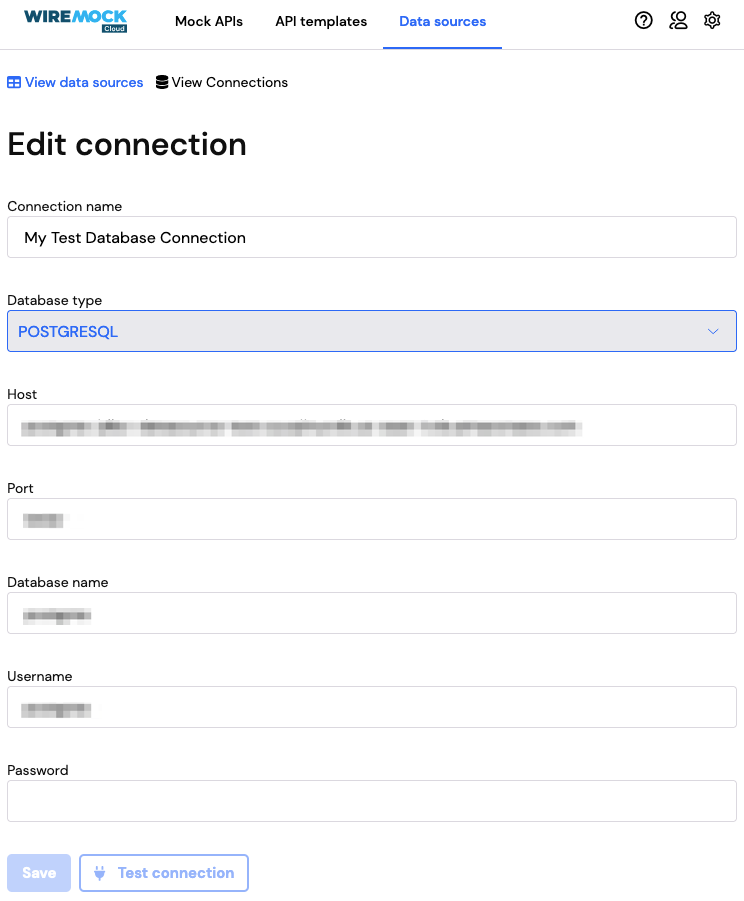 For security, the password is not returned on the edit screen. You can still update any of the fields and if you
leave the password field blank it will keep the existing password and update all other fields. To update your
password or re-test the connection you will need to enter your password in the field provided.
## Deleting a database connection
Database connections can be deleted from your organisation. To delete a database connection, you must be an
administrator of your organisation.
To delete a database connection:
* Navigate to the [Database connections page](https://app.dev.wiremock.cloud/data-sources/connections).
* Click on the delete icon for the connection you want to remove.
For security, the password is not returned on the edit screen. You can still update any of the fields and if you
leave the password field blank it will keep the existing password and update all other fields. To update your
password or re-test the connection you will need to enter your password in the field provided.
## Deleting a database connection
Database connections can be deleted from your organisation. To delete a database connection, you must be an
administrator of your organisation.
To delete a database connection:
* Navigate to the [Database connections page](https://app.dev.wiremock.cloud/data-sources/connections).
* Click on the delete icon for the connection you want to remove.
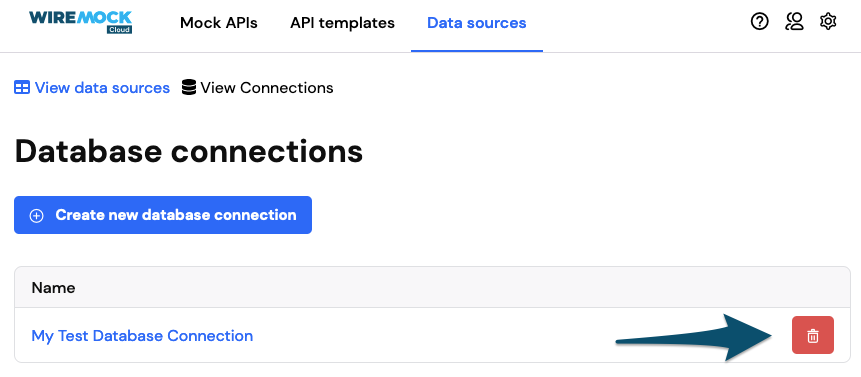
Clicking on the delete icon will open a confirmation dialog. Click the `Confirm` button to confirm the deletion or
`Cancel` to close the dialog without deleting the connection.
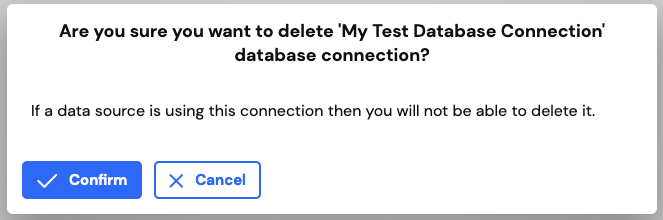
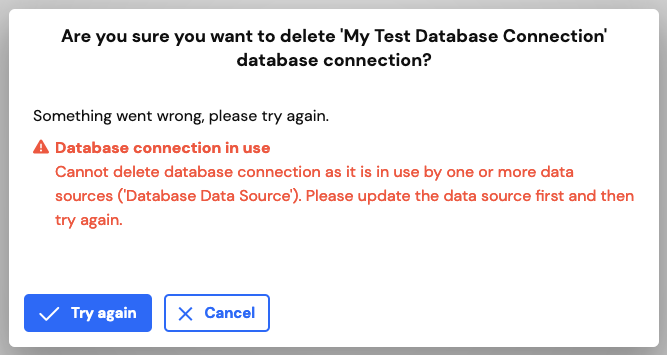
Clicking `Confirm` will delete the data source, only if there are no data sources in your organisation that are
currently using it. If the database connection you are trying to delete is in use an error will be displayed, and you
will not be able to delete the connection. You will need to update or delete the data sources that are using the
connection and then try to delete again.