> ## Documentation Index
> Fetch the complete documentation index at: https://docs.wiremock.io/llms.txt
> Use this file to discover all available pages before exploring further.
# Creating & Editing CSV Data Sources
> Setting up your external test data from a CSV file
## Creating a CSV data source
Data sources can be created at the organisation level, meaning that the Data sources you create can be shared among the
members of your organisation.
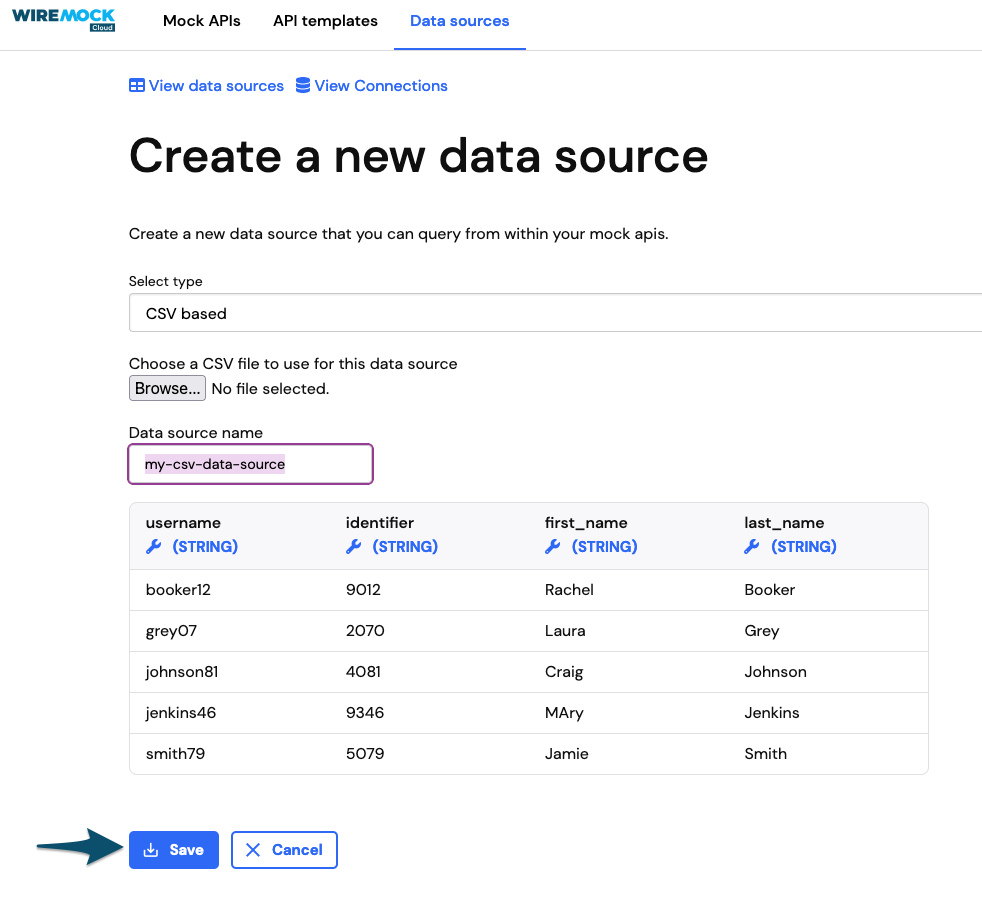
To create a data source:
* Navigate to the Data Sources page.
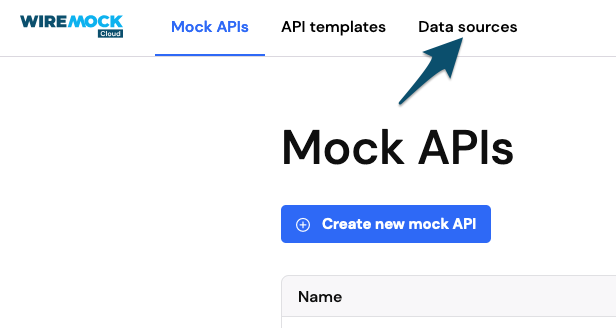 * Click on the button, `+Create new data source`.
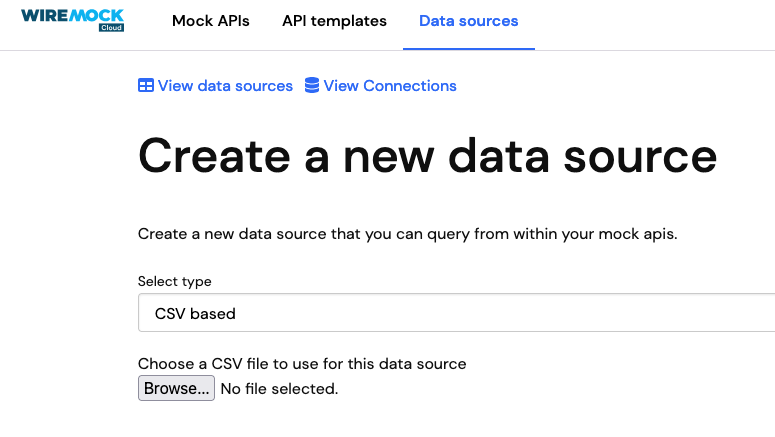
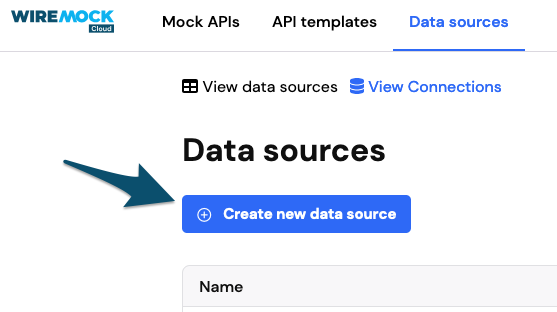 * Choose `CSV based` from the dropdown and select the CSV file containing your data.
 * Provide a name for your data source.
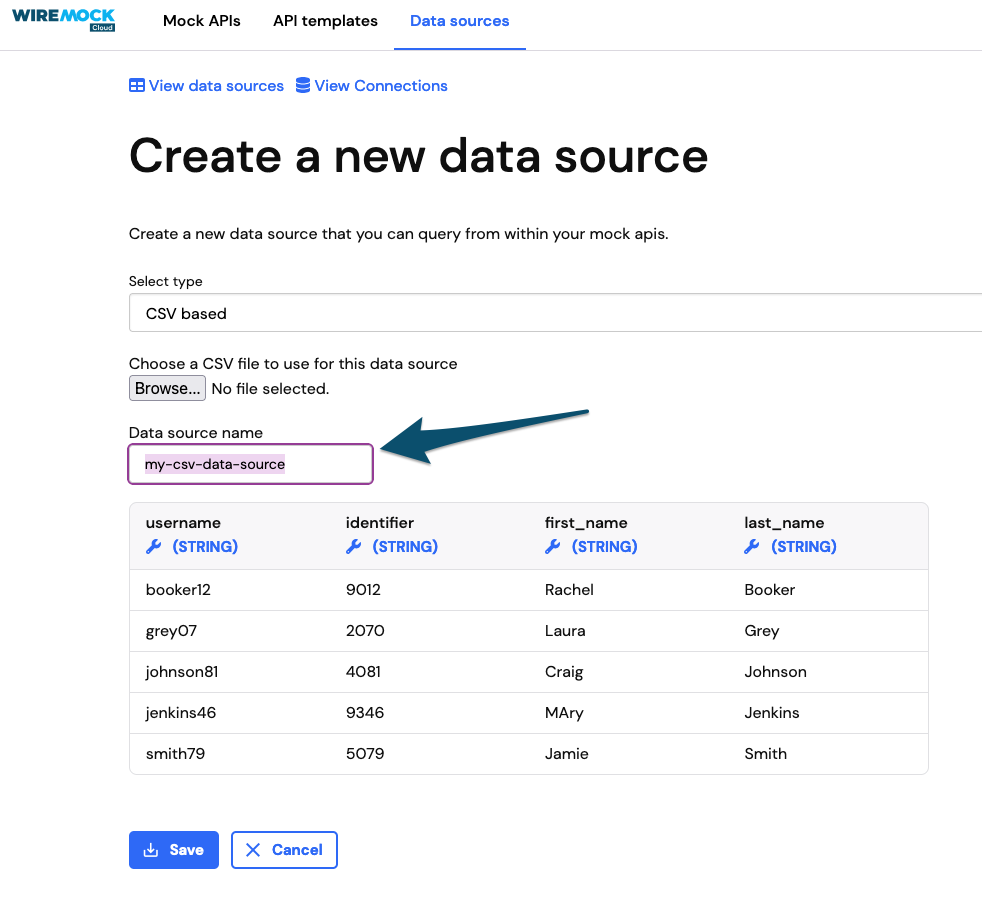 * Click `save` at the bottom of the page.
 ## Editing a CSV data source
Data sources can be updated after creation.
To edit a data source:
* Navigate to the Data Sources page.
* Click on the data source you wish to edit, from the list provided.
* Update your data source.
* Click on the `save` at the bottom of the page.
Once in the data source page, you will be able to:
* Replace the csv file
* Rename the data source
* Change the column types
## Columns
### Column names
When uploading the CSV file, please ensure the following requirements for the column names:
* Column names must be unique within the CSV file.
* Column names must be between 1 and 128 characters in length.
* Column names can only contain letters, digits, the underscore character and spaces, and must not start with an
underscore.
* Column names cannot be any of the following reserved keywords:
`all`, `and`, `any`, `array`, `as`, `at`, `between`, `both`, `by`, `call`, `case`, `cast`, `check`, `coalesce`, `constraint`, `convert`, `corresponding`, `create`, `cross`, `cube`, `default`, `distinct`, `do`, `drop`, `else`, `every`, `except`, `exists`, `fetch`, `for`, `foreign`, `from`, `full`, `grant`, `group`, `grouping`, `having`, `in`, `inner`, `intersect`, `into`, `is`, `join`, `leading`, `left`, `like`, `natural`, `not`, `nullif`, `on`, `or`, `order`, `outer`, `primary`, `references`, `right`, `rollup`, `select`, `set`, `some`, `sum`, `table`, `then`, `to`, `trailing`, `trigger`, `union`, `unique`, `using`, `values`, `when`, `where`, `with`
Also notice that column names will be lowered case.
### Column types
Before saving the data source (or when editing it), you are able to amend the column data types. You will find a\
setting icon below the column name and, when clicking on it, you will be able to select the correct type for the column,
as shown in the following figure.
## Editing a CSV data source
Data sources can be updated after creation.
To edit a data source:
* Navigate to the Data Sources page.
* Click on the data source you wish to edit, from the list provided.
* Update your data source.
* Click on the `save` at the bottom of the page.
Once in the data source page, you will be able to:
* Replace the csv file
* Rename the data source
* Change the column types
## Columns
### Column names
When uploading the CSV file, please ensure the following requirements for the column names:
* Column names must be unique within the CSV file.
* Column names must be between 1 and 128 characters in length.
* Column names can only contain letters, digits, the underscore character and spaces, and must not start with an
underscore.
* Column names cannot be any of the following reserved keywords:
`all`, `and`, `any`, `array`, `as`, `at`, `between`, `both`, `by`, `call`, `case`, `cast`, `check`, `coalesce`, `constraint`, `convert`, `corresponding`, `create`, `cross`, `cube`, `default`, `distinct`, `do`, `drop`, `else`, `every`, `except`, `exists`, `fetch`, `for`, `foreign`, `from`, `full`, `grant`, `group`, `grouping`, `having`, `in`, `inner`, `intersect`, `into`, `is`, `join`, `leading`, `left`, `like`, `natural`, `not`, `nullif`, `on`, `or`, `order`, `outer`, `primary`, `references`, `right`, `rollup`, `select`, `set`, `some`, `sum`, `table`, `then`, `to`, `trailing`, `trigger`, `union`, `unique`, `using`, `values`, `when`, `where`, `with`
Also notice that column names will be lowered case.
### Column types
Before saving the data source (or when editing it), you are able to amend the column data types. You will find a\
setting icon below the column name and, when clicking on it, you will be able to select the correct type for the column,
as shown in the following figure.
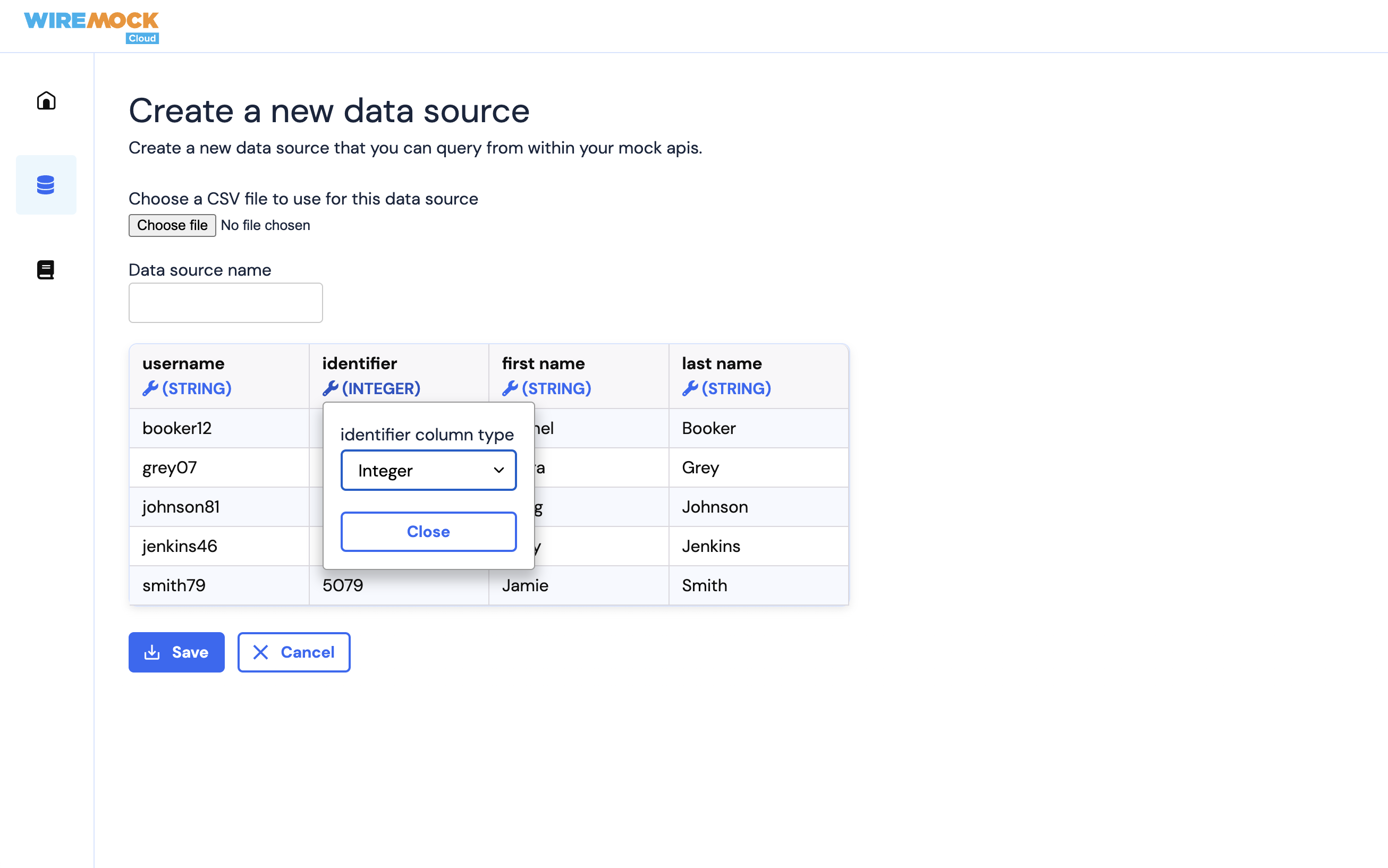 The default data type is `STRING`, however you can pick any of the following types:
| Data source type |
| --------------------------- |
| `BOOLEAN` |
| `DECIMAL` |
| `INTEGER` |
| `STRING` |
| `DATE` |
| `TIME` (time zoned) |
| `TIME` (not time zoned) |
| `DATETIME` (time zoned) |
| `DATETIME` (not time zoned) |
Example
| username (STRING) | age (INTEGER) | first\_name (STRING) | height (DECIMAL) | email (STRING) | dob (DATETIME, time zoned) | premium (BOOLEAN) |
| ----------------- | ------------- | -------------------- | ---------------- | ------------------------------------------- | ---------------------------------------- | ----------------- |
| admin | 64 | Bob | 1.8 | [bob@example.com](mailto:bob@example.com) | 1962-12-31T16:50:31+05:00 | true |
| bill | 27 | Bill | 1.92 | [bill@example.com](mailto:bill@example.com) | 1997-05-24T19:18:12Z | false |
| jill | 15 | Jill | 1.70 | [jill@example.com](mailto:jill@example.com) | 2009-11-07T04:34:01+01:00\[Europe/Paris] | false |
| jane | 74 | Jane | 1.81 | [jane@example.com](mailto:jane@example.com) | 1952-01-13T10:10:10-12:00 | true |
#### Date type
For `DATE`, `TIME` and `DATETIME` types, you can specify your own format string using the elements in the following table:
| Letter | Date or Time Component | Presentation | Examples |
| ------ | ------------------------------------------------ | ------------------ | ------------------------------------- |
| G | Era designator | Text | AD |
| y | Year | Year | 1996; 96 |
| Y | Week year | Year | 2009; 09 |
| M | Month in year | Month | July; Jul; 07 |
| w | Week in year | Number | 27 |
| W | Week in month | Number | 2 |
| D | Day in year | Number | 189 |
| d | Day in month | Number | 10 |
| F | Day of week in month | Number | 2 |
| E | Day name in week | Text | Tuesday; Tue |
| u | Day number of week (1 = Monday, ..., 7 = Sunday) | Number | 1 |
| a | Am/pm marker | Text | PM |
| H | Hour in day (0-23) | Number | 0 |
| k | Hour in day (1-24) | Number | 24 |
| K | Hour in am/pm (0-11) | Number | 0 |
| h | Hour in am/pm (1-12) | Number | 12 |
| m | Minute in hour | Number | 30 |
| s | Second in minute | Number | 55 |
| S | Millisecond | Number | 978 |
| z | Time zone | General time zone | Pacific Standard Time; PST; GMT-08:00 |
| Z | Time zone | RFC 822 time zone | -0800 |
| X | Time zone | ISO 8601 time zone | -08; -0800; -08:00 |
The default data type is `STRING`, however you can pick any of the following types:
| Data source type |
| --------------------------- |
| `BOOLEAN` |
| `DECIMAL` |
| `INTEGER` |
| `STRING` |
| `DATE` |
| `TIME` (time zoned) |
| `TIME` (not time zoned) |
| `DATETIME` (time zoned) |
| `DATETIME` (not time zoned) |
Example
| username (STRING) | age (INTEGER) | first\_name (STRING) | height (DECIMAL) | email (STRING) | dob (DATETIME, time zoned) | premium (BOOLEAN) |
| ----------------- | ------------- | -------------------- | ---------------- | ------------------------------------------- | ---------------------------------------- | ----------------- |
| admin | 64 | Bob | 1.8 | [bob@example.com](mailto:bob@example.com) | 1962-12-31T16:50:31+05:00 | true |
| bill | 27 | Bill | 1.92 | [bill@example.com](mailto:bill@example.com) | 1997-05-24T19:18:12Z | false |
| jill | 15 | Jill | 1.70 | [jill@example.com](mailto:jill@example.com) | 2009-11-07T04:34:01+01:00\[Europe/Paris] | false |
| jane | 74 | Jane | 1.81 | [jane@example.com](mailto:jane@example.com) | 1952-01-13T10:10:10-12:00 | true |
#### Date type
For `DATE`, `TIME` and `DATETIME` types, you can specify your own format string using the elements in the following table:
| Letter | Date or Time Component | Presentation | Examples |
| ------ | ------------------------------------------------ | ------------------ | ------------------------------------- |
| G | Era designator | Text | AD |
| y | Year | Year | 1996; 96 |
| Y | Week year | Year | 2009; 09 |
| M | Month in year | Month | July; Jul; 07 |
| w | Week in year | Number | 27 |
| W | Week in month | Number | 2 |
| D | Day in year | Number | 189 |
| d | Day in month | Number | 10 |
| F | Day of week in month | Number | 2 |
| E | Day name in week | Text | Tuesday; Tue |
| u | Day number of week (1 = Monday, ..., 7 = Sunday) | Number | 1 |
| a | Am/pm marker | Text | PM |
| H | Hour in day (0-23) | Number | 0 |
| k | Hour in day (1-24) | Number | 24 |
| K | Hour in am/pm (0-11) | Number | 0 |
| h | Hour in am/pm (1-12) | Number | 12 |
| m | Minute in hour | Number | 30 |
| s | Second in minute | Number | 55 |
| S | Millisecond | Number | 978 |
| z | Time zone | General time zone | Pacific Standard Time; PST; GMT-08:00 |
| Z | Time zone | RFC 822 time zone | -0800 |
| X | Time zone | ISO 8601 time zone | -08; -0800; -08:00 |